Phone Mockup Generator
Phone mockup for a screenshot or screen recording: one phone or a group of three, each with its own screen, and a recording keeps playing on the screen.
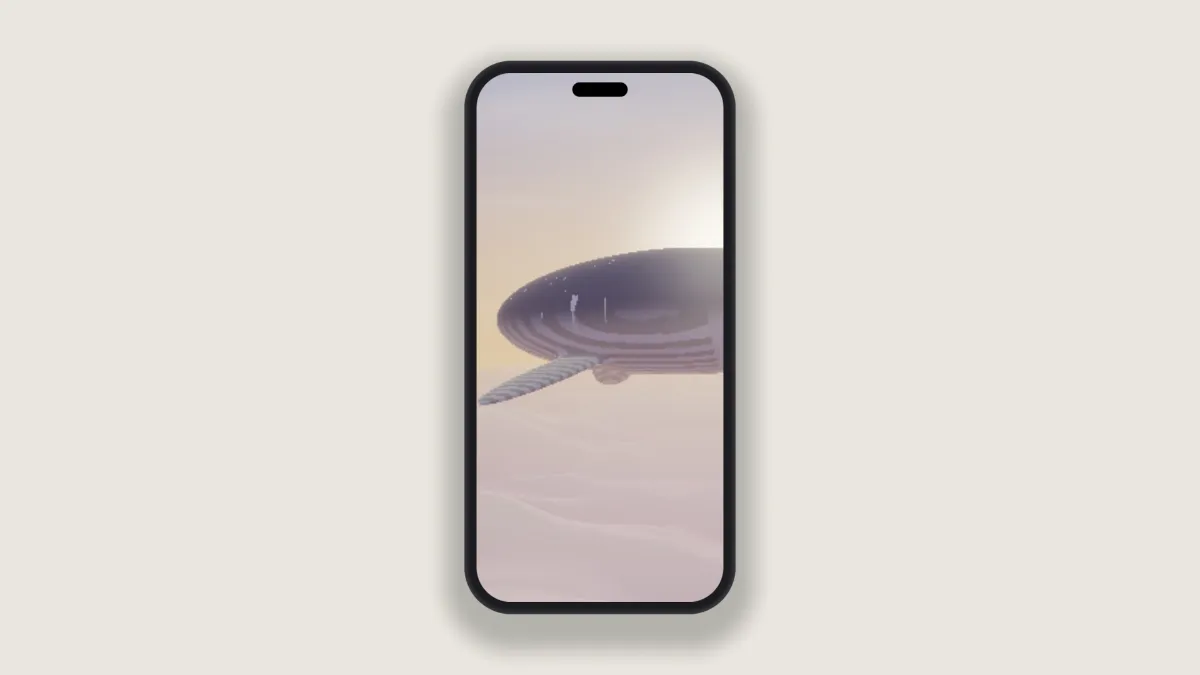
What is a phone mockup?
A phone mockup puts an app or a mobile site on a smartphone's screen, so a flat screenshot reads as a device. The idea comes from industrial design, where a mockup is a model of the finished thing, made to show it off before or around launch.
The phone here is drawn in the shader from rounded shapes, with a pill-shaped camera cutout at the top of the screen and a lit rim around the body. It doesn't copy any maker's proportions and has no logo, so it isn't tied to one brand or model.
How to make a phone mockup from a screenshot
Open a screenshot, or a screen recording if you want a video mockup. Fit decides how the picture meets the screen. Fill the screen crops it to the phone's tall shape, while Fit inside shows all of it with black around.
Devices adds a second and a third phone, a little smaller, behind and to the sides. You can give them a Second screen and a Third screen picture, or leave those empty and they'll repeat the first. The Three phones preset sets all of this up for you.
Size sets how much of the frame the phones take up, Device colour paints the body, and Backdrop and Shadow finish the shot. On its side lays the phone down, which suits a game or a video shot wide.
Sizes and settings for Google Play and a landing page
Google Play recommends portrait screenshots at 9:16 and at least 1080 by 1920 pixels. Open the gear beside the Mosh button, choose 9:16 and type 1080 as the Width. At the default Size of 0.82 the phone's screen comes out about 1,500 pixels tall, so a phone capture only ever gets scaled down. Play accepts JPEG or 24-bit PNG with no transparency, so keep a Backdrop color on.
Play's feature graphic is 1024 by 500. Start from Three phones, click the lock in Settings so width and height can change separately, and type 1024 and 500. Raise Size to 0.85 and the front phone stands 425 pixels tall. Load a different capture into Second screen and Third screen and the set shows off three parts of the app.
If the phone should float over a landing page, tick No backdrop and set Size to 0.85. That leaves room under the phone for its whole shadow. To show it moving instead, use the 3D Mockup Generator, which films it with a camera that pushes in and pulls back.
Which screenshot fills the phone's screen?
The screen is about 1 to 2.14, a touch wider than most phone captures. Under Fill the screen, an iPhone capture at 1290 by 2796 loses about 1% of its height, and a 20:9 Android capture at 1080 by 2400 loses about 3.5%, split between top and bottom. So keep status icons and buttons away from the very edge.
Once Settings gives the output its own shape, the capture sits whole in the middle of the new frame and the phone shows that middle part. If the capture is narrower than the screen, you'll get a thin black edge down each side. It disappears against a dark Device colour and shows up against silver.
Saving the mockup for a store, a slide or a README
Neither app store accepts screenshots with an alpha channel, so keep the backdrop on and save PNG or JPG. Apple's iPhone sizes, like 1290 by 2796, are longer than the 2048 pixels this page saves. That's why the Play recipe above is the one that works here as is.
For a slide or a post, a screen recording on the phone is best as MP4. As a GIF it shrinks to 960 pixels on its longer side with 256 colors a frame. Flat app screens survive that fine, but photos inside the app turn grainy.