Image Tools
These are the everyday jobs a picture needs before it goes anywhere: cropping, resizing, converting, shrinking the file, flipping it or cutting it into tiles. You can also trace an image to SVG, remove a green screen, and outline, censor or watermark a photo here.
The work all happens in your browser. Files are read and written on your own device and never uploaded, and that matters if you're working with private photos, client work or unreleased designs.
Green Screen Remover
For a plain backdrop, green, blue, black or white, that has to become real transparency.

Add Outline to Image
For a sticker-style stroke round a cutout, or a dark edge that keeps a white product visible.

Censor Image
For hiding one face, plate or name behind big blocks while the rest of the photo stays as shot.

Add Watermark to Photo
For putting your name or a © line on a photo or clip before it goes out to clients or online.
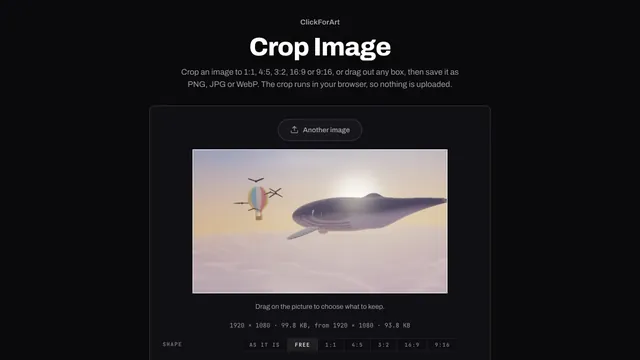
Crop Image
For cutting a photo to a post, thumbnail or print shape, or to any box you drag on it.
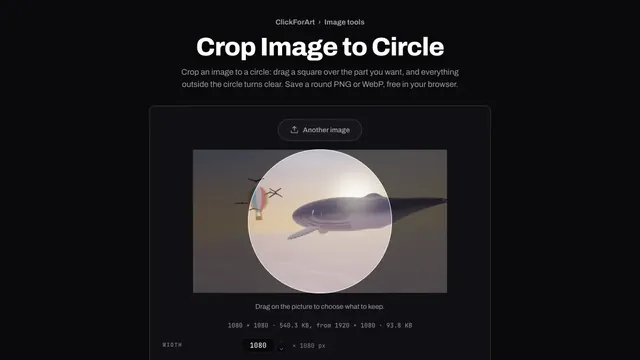
Crop Image to Circle
When the round shape has to be in the file itself, as in an email signature or on a slide.
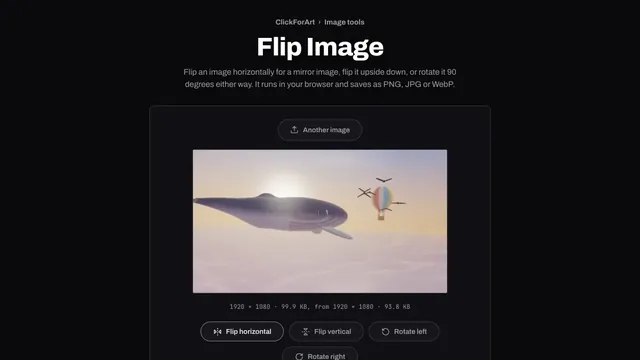
Flip Image
For a mirror image, a fix for an upside-down scan or a quarter turn, with no pixel blended.
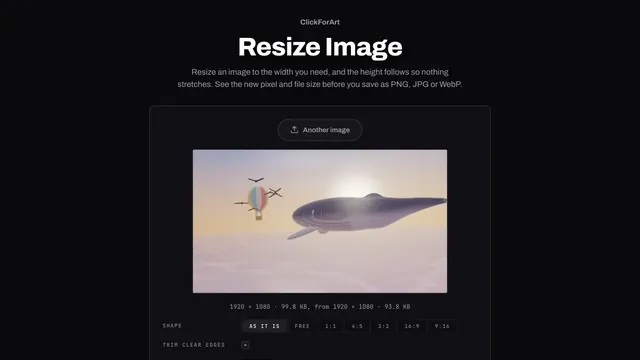
Resize Image
When the picture has more pixels than the spot it will fill on a page or in an email.
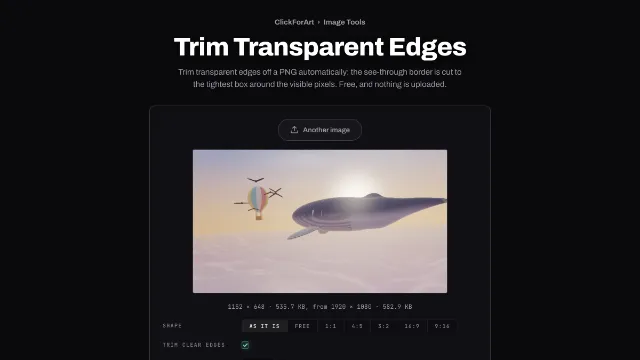
Trim Transparent Edges
When a PNG carries empty space round its edges that throws off how it lines up in a layout.
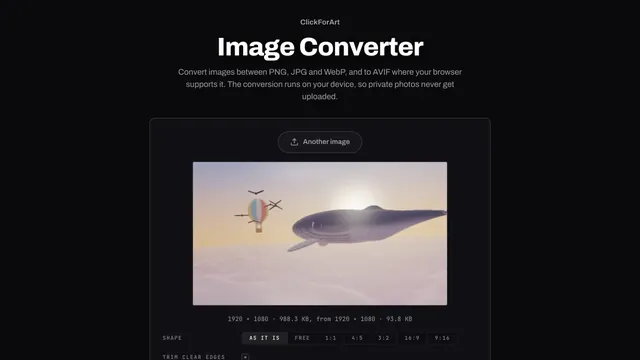
Image Converter
When a site, a form or a program asks for a format your file isn't in yet.
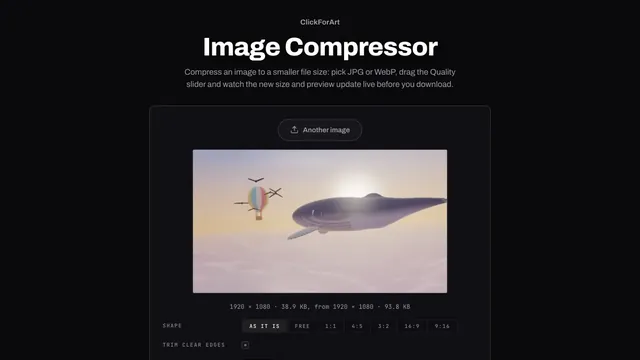
Image Compressor
When a file must fit a size limit and you want to watch the quality while it drops.
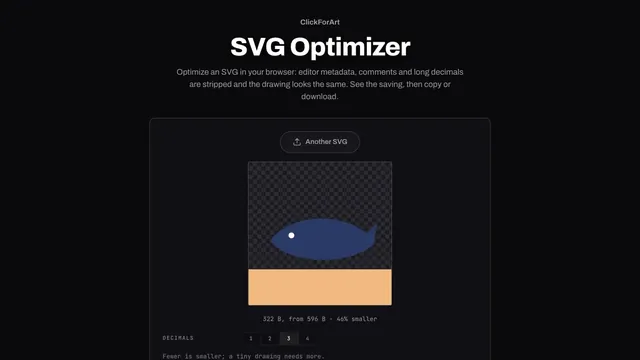
SVG Optimizer
For an SVG from a drawing app that is padded with editor notes and long decimals.
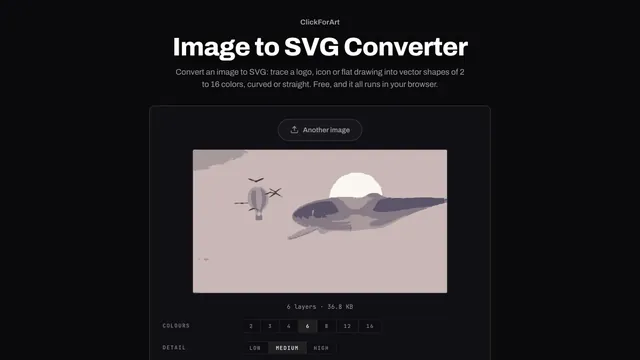
Image to SVG Converter
For a flat logo, a signature or a sprite that has to scale to any size without blur.
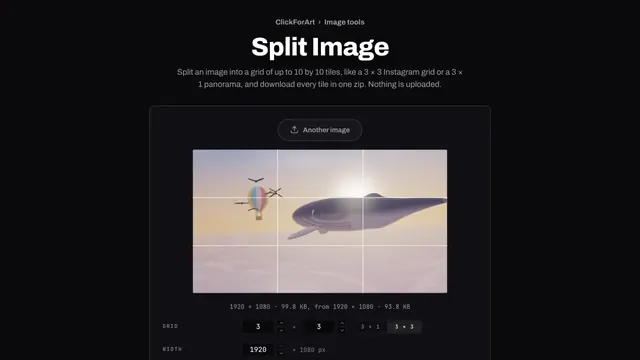
Split Image
For numbered tiles that make a profile grid, a swipeable panorama or an emoji mosaic.
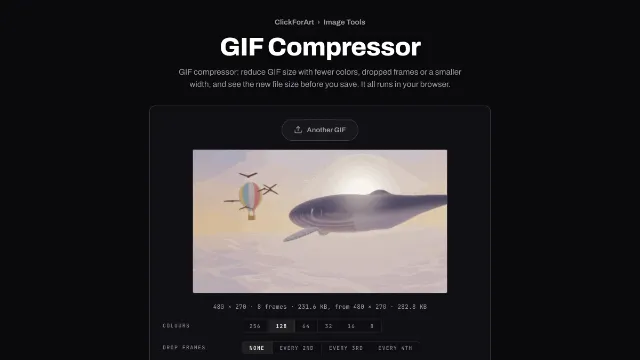
GIF Compressor
When an animated GIF is too big for Slack, an email or a README and has to keep moving.
Are these tools safe for private photos?
Yes. The page reads your picture into the browser's memory, your own device does the work, and the result goes straight to your downloads. No copy gets sent anywhere.
You can check that yourself. Once a tool has loaded, turn off Wi-Fi or switch on airplane mode, then open, edit and save a picture. It still works, and a tool that sends your file to a server couldn't do that.
Saving drops hidden data too. Anything you crop, resize, convert or compress here is written from its pixels alone, without the camera's EXIF data, like the GPS location where the shot was taken.
Which image format should you use?
JPG is lossy and made for photos: small files, no transparency, and blocky artifacts if you set the quality too low. PNG is lossless and keeps transparency, so it suits screenshots, logos and flat graphics, but photos come out large. WebP can be lossy or lossless, with transparency, and it's usually smaller than either. AVIF squeezes photos further still, where your browser can encode it.
Image Converter switches between them. Image Compressor shows the new file size and a live preview as you drag Quality, so you can stop just before artifacts appear. GIF holds 256 colors per frame at most but animates everywhere, and GIF Compressor makes one smaller.
How do you get a photo under 100 KB or 50 KB?
Lower Width before you touch Quality. A 3840 × 2160 landscape photo, which these pages take down to 2048 px wide, was still 150 KB as a JPG at Quality 50, and as a WebP it needed Quality 50 to get just under 100 KB. At Width 1024 the same photo was 78 KB as a JPG at Quality 80, and at Width 800 it was 49 KB.
The resize and compress pages both show the new file size whenever you change a setting. Set Width first, then lower Quality until the readout drops under your limit. This photo is mostly sky and water, so one with more fine detail will come out larger at the same settings.
Can one page crop, resize and compress at once?
Yes. Crop Image, Resize Image, Trim Transparent Edges and the converter and compressor all share one panel, with Shape, Trim clear edges, Width, Format and Quality on each. The only difference is how they open. In one pass you can crop to 4:5, scale to 1080 px and save WebP at Quality 70, and the picture gets encoded once instead of three times.
Flip Image turns and mirrors and doesn't have Width. Crop Image to Circle cuts a round picture with clear corners, and Split Image cuts the result into numbered tiles for a grid.
A sticker takes three pages. Key the backdrop out with Green Screen Remover and save a PNG, add the stroke with Add Outline to Image, then cut the leftover margin with the trim page.
What is the difference between a raster image and an SVG?
A raster image is a grid of pixels, and it goes soft when you enlarge it. An SVG is a vector drawing described by shapes and curves, so it stays sharp at any size and is often smaller for logos and icons. Image to SVG Converter traces a logo, icon or flat drawing into vector shapes of 2 to 16 colors, curved or straight. SVG Optimizer strips editor metadata, comments and long decimals from an SVG without changing how it looks.
Tracing works best on flat art. A traced photo turns into a poster of flat color areas, which can be a nice look in its own right. A photo that's meant to stay a photo belongs in JPG, WebP or AVIF, though.
How do you censor, watermark or outline a photo?
Censor Image pixelates a box over a face, a plate or a name. Make the blocks big. Text pixelated in small blocks can sometimes be read back, as the Depix project showed with screenshots.
Add Watermark to Photo puts a faint © line across the middle of the picture, where it's hardest to crop away, and two sliders move it to a corner instead. The outline tool draws a die-cut stroke around a picture that has a transparent background.
If you want pixelation as a style instead of a cover, the Pixel Art & Mosaic Effects hub has the full set, and the Text Effects hub has lettering that's meant to be looked at. To match a Key colour or a stroke to a brand, the Color Tools hub has a picker that gives you the hex code of any pixel.