Alert Dialog Mockup
Alert dialog mockup: a bold heading, a short message, and Cancel and OK buttons on a light or dark card. Lay it over a screenshot or video in your browser.
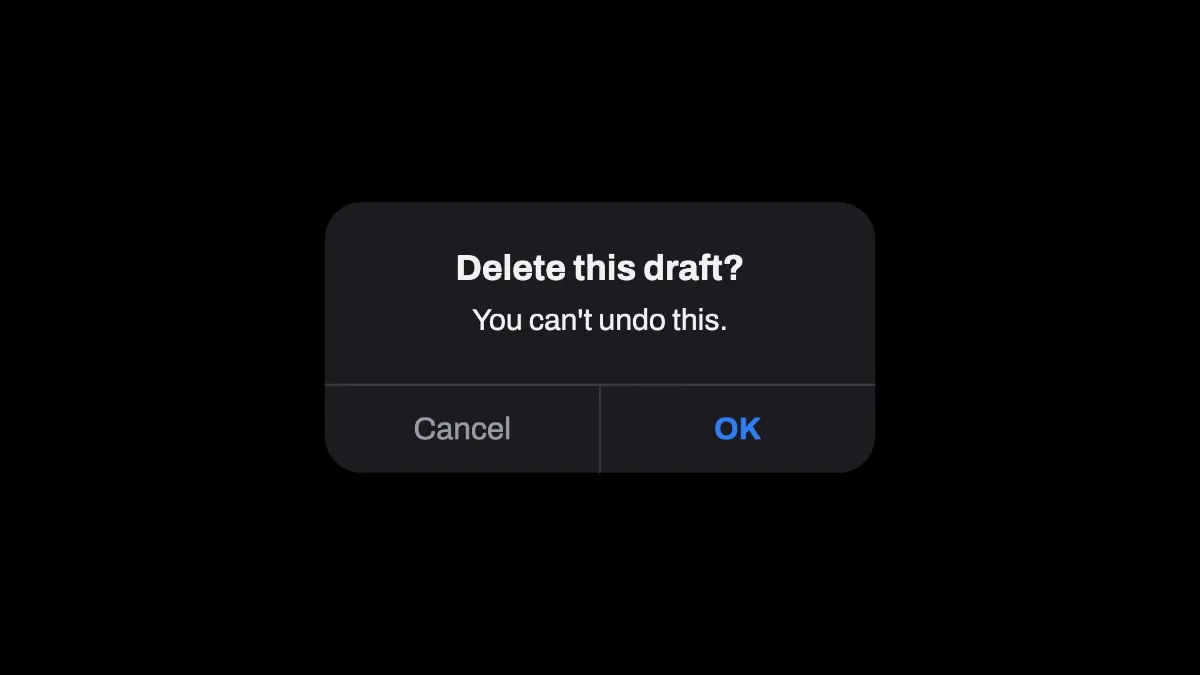
What is an alert dialog?
An alert dialog is a small modal window that stops what you're doing to give you a message and ask for an answer. The W3C's ARIA Authoring Practices describe it as a modal dialog that interrupts the user's workflow to get a response, like confirming that a file should be deleted.
Most alert dialogs have the same shape: a centered heading, a line or two of explanation, and two buttons side by side along the bottom.
How to make an alert dialog mockup
Start on the blank canvas, or load the screenshot or video you want it to pop up over. Type the heading into Title and the explanation into Text. The message wraps, and the dialog grows to fit it.
Theme picks light or dark, and the preset starts on dark. Accent colors the OK button. Size scales the dialog against the frame's width, and Position X and Position Y place it.
Can I change the button labels?
No. The buttons always say Cancel and OK, with Cancel in gray and OK in bold Accent color, and a thin divider between them. Write the heading as a question that OK answers, the way the preset's Delete this draft does.
The Title field holds up to 60 characters, and Text up to 240. It's all set in Archivo on a rounded card with a soft shadow.
Settings for a delete warning and a phone-sized alert
For a delete warning, switch Theme to Light and set Accent to a deep red like #c62828. The OK label then shows at 5.6 to 1 against the white card.
For a joke over a screenshot, load the screenshot, type the question into Title and set Size to 0.5. The dialog covers the middle of the picture without hiding all of it.
On a phone screenshot, Size 0.95 makes the dialog about 70% of the screen's width, because the card is 0.74 times as wide as Size makes it. Save that, then load the PNG into the Phone Mockup Generator to show it on a device.
Saving the dialog
The dialog's thin divider lines and gray Cancel are the first things JPG blurs, so save as PNG. In a video it stays on screen the whole time, so trim the clip around it and export MP4.