Color Tools
These tools help you choose colors and then check them. You can pick a color off a photo, pull a palette out of an image, build harmonies on a color wheel, mix two colors, and test text against its background.
They're meant for designers, developers and anyone choosing colors for a brand, a website or a slide deck. Every color comes as a code you can copy, and all the tools run right in your browser.
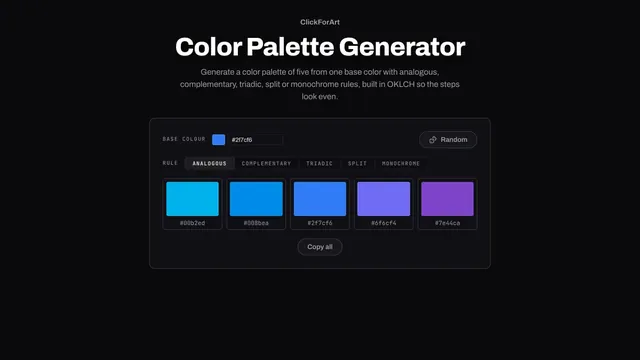
Color Palette Generator
Pick it for five ready colors from one base by a harmony rule, with no wheel to steer.
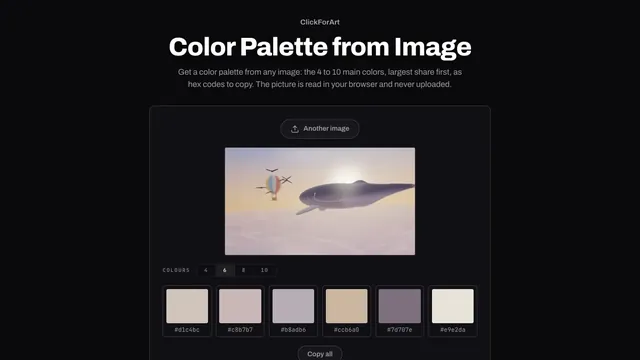
Color Palette from Image
Pick it to pull a whole scheme out of a photo, its biggest color areas listed first.

Color Picker from Image
Pick it for one exact pixel, such as a logo's ink, read through a magnifying loupe.
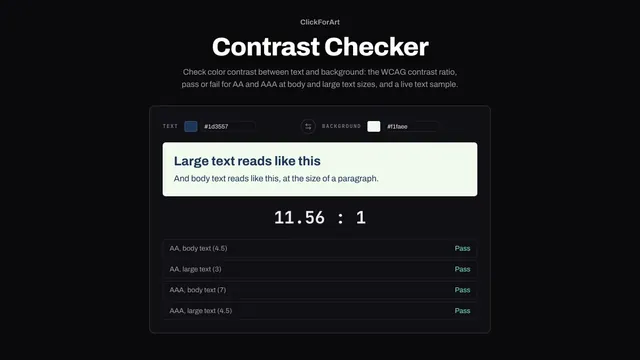
Color Contrast Checker
Pick it to test one text color on one background and see each WCAG grade pass or fail.
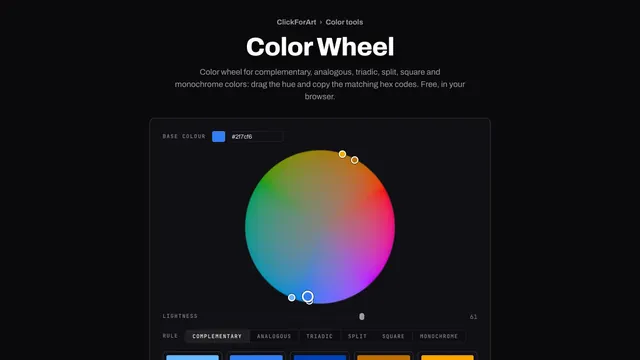
Color Wheel
Pick it to steer hue, saturation and lightness by hand and watch the rule's colors move.
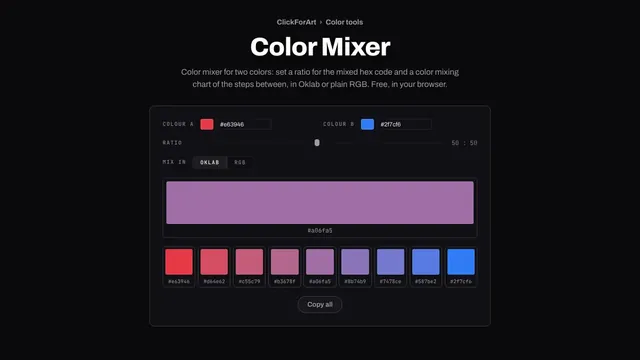
Color Mixer
Pick it for the shades between two colors: a hover tint, a midpoint or a nine-step ramp.
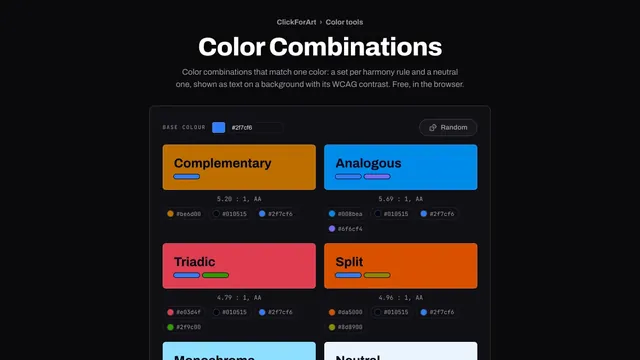
Color Combinations
Pick it to see harmonies as text on a background, with the contrast grade of each card.
Which color tool do you need?
It depends on what you're starting with. If you have a picture, Color Picker from Image reads one exact pixel, like the ink of a logo, and Color Palette from Image sums up the whole photo in 4 to 10 averaged colors. If you have one color and no plan yet, Color Palette Generator gives you five based on a harmony rule. Color Wheel lets you steer those same rules by hand, and Color Combinations lays out each rule's colors as a background with text on top.
With two colors already in hand, Color Mixer finds the shades in between, and Color Contrast Checker tells you whether one is readable on the other.
How do you turn one brand color into a checked web palette?
Grab a red, #e63946, off the logo with the picker. On the wheel, Rule Complementary gives you a teal accent, #00a3b9, and the combinations suggest a page to go with it: their Neutral card sets near-black #130102 text on a pale #ffedec at 17.99:1.
A contrast check then shows a white label on #e63946 at 4.17:1, which is under the 4.5:1 body text needs. So in the mixer, shift the red toward black in Oklab. At 4 percent, #da3542, white passes for the first time at 4.60:1, and at 10 percent, #c8303c gives 5.32:1 for a pressed state.
Why do color codes differ between apps?
Everything here reads and writes sRGB, the space a CSS hex code is defined in. The OKLCH line in the picker is the same sRGB color, just written another way. A picture saved in a wider space like Display P3 stores different numbers for the same color, so an app that shows a file's stored numbers won't agree with one that converts them.
We saved #e63946 into a Display P3 PNG, where it ends up stored as #d4494c, and in Chrome the picker here converts it back and reads #e63a46. Before you compare codes from two apps, find out which color space each one is reporting.