Pop Art Effect
Pop art effect: turn pictures into flat black, hot pink, cyan and yellow inks, like a Warhol screen print. Pick your own inks, then save a PNG or MP4 for free.
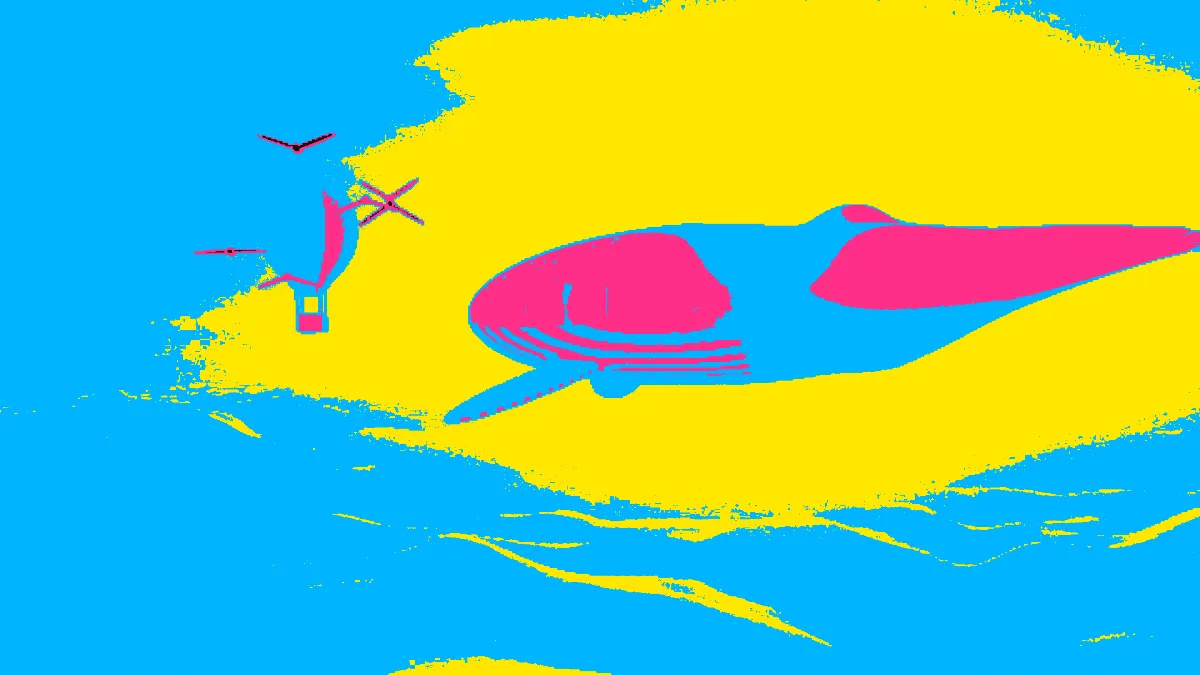
What is pop art?
Pop art took its subjects from comics, advertising, packaging and celebrity photos, and a lot of its look from the cheap printing those came in. It grew up in Britain and the United States in the late 1950s and early 1960s.
Andy Warhol turned to photographic silkscreen in 1962. He'd have a tightly cropped, high-contrast photo made into a screen, paint blocks of flat color on the canvas by hand, then print the black image over the top. A face became a few unreal colors with hard edges, and that's the look this tool makes.
Where do pop art dots come from?
They come from the Ben-Day process. Benjamin Henry Day Jr. patented his printing films in 1879: gelatin sheets with a raised pattern that a printer inked and pressed onto a stone or plate to lay down an even tint. The patent describes lines. Dot patterns took over later, and comic books used them for decades to mix pinks, skies and shadows out of a few inks.
Roy Lichtenstein started painting those dots by hand, enlarged, in 1961. This tool gives you the flat inks. For dots on top, open it in the studio and add Halftone or CMYK Halftone after Tone Bands.
How does the pop art filter choose the colors?
It measures each pixel's brightness and cuts the range into equal bands, one per ink, darkest first. Here the shadows go black, the darker midtones hot pink, the lighter ones cyan and the highlights yellow. The photo's own hues get ignored, so the colors come from your inks alone, just as they came from Warhol's paint.
Shares bends the brightness before the cut, so draw the curve steeper wherever an ink should take more of the picture. Softness blends each band into the next, mixed in the OKLab color space. At 0, as it is here, every edge stays hard.
How to turn a photo into pop art
Load an image or video. Tone Bands opens on four inks, #121212 black, #ff2e88 pink, #00b4ff cyan and #ffe600 yellow, with Softness at 0. You can change any of them in Inks or add more, up to 16, darkest first. The ink sets Print inks, Two tone, Riso, Greys and Forest swap out the whole palette.
A face lit from one side against a plain background splits cleanly into all four inks. The presets Four inks, Two tone, Mostly shadow, Riso poster and Soft greys load other palettes and shares.
Save a PNG to keep a cut-out's transparency. The effect only recolors pixels and leaves the alpha channel alone, so a portrait with its background removed stays free-standing. GIF keeps transparency only as on or off for each pixel, and JPG doesn't keep it at all.
Settings for a Marilyn-style portrait, a two-tone stencil and a riso-style poster
Marilyn-style portrait: four inks, darkest first, #121212, #2fb7b0, #f49ac2 and #ffe14d, with Softness 0. The shadows go black, the darker midtones turquoise like Warhol's eyeshadow, the face pink, and the brightest tones yellow, which usually means the blond hair and highlights.
Two-tone stencil: the Two tone preset with Softness 0. To move the split, drag the middle of the Shares curve. Up gives the light ink more of the picture, and down gives the dark ink more.
Riso-style poster: the Riso poster preset, with Softness at 0.3 so each band blends a little into the next. That soft edge looks more like ink that bled than a digital cut.
Why did most of my portrait turn black?
The bands split brightness evenly, so with four inks everything darker than 25% takes the first ink. A dark or backlit photo puts most of its pixels down there, and the face vanishes into the shadow ink.
Make the dark end of the Shares curve rise faster, which spreads the shadows across more inks, or brighten the photo first with the brightener on the Color Effects hub. If the result looks too clean, Screen Print Effect cuts by brightness the same way and pulls each layer slightly off register.