Resize Image
Resize an image online by width, and the height follows so nothing stretches. See the new pixel and file size, then save as PNG, JPG or WebP. Free, no upload.
What happens when you resize an image?
Resizing, or image scaling, changes how many pixels a picture has. Making it smaller means resampling, where each new pixel is worked out from the old pixels it covers.
Keeping the aspect ratio means width and height shrink by the same factor, so circles stay round and faces keep their shape. This tool always does it that way. You set the width, and it calculates the height.
It only resizes down. Width stops at the picture's own width, because enlarging can't add detail the original never had. The scaling uses the browser canvas at its highest smoothing setting, which keeps edges clean instead of stair-stepped.
How to resize an image by width
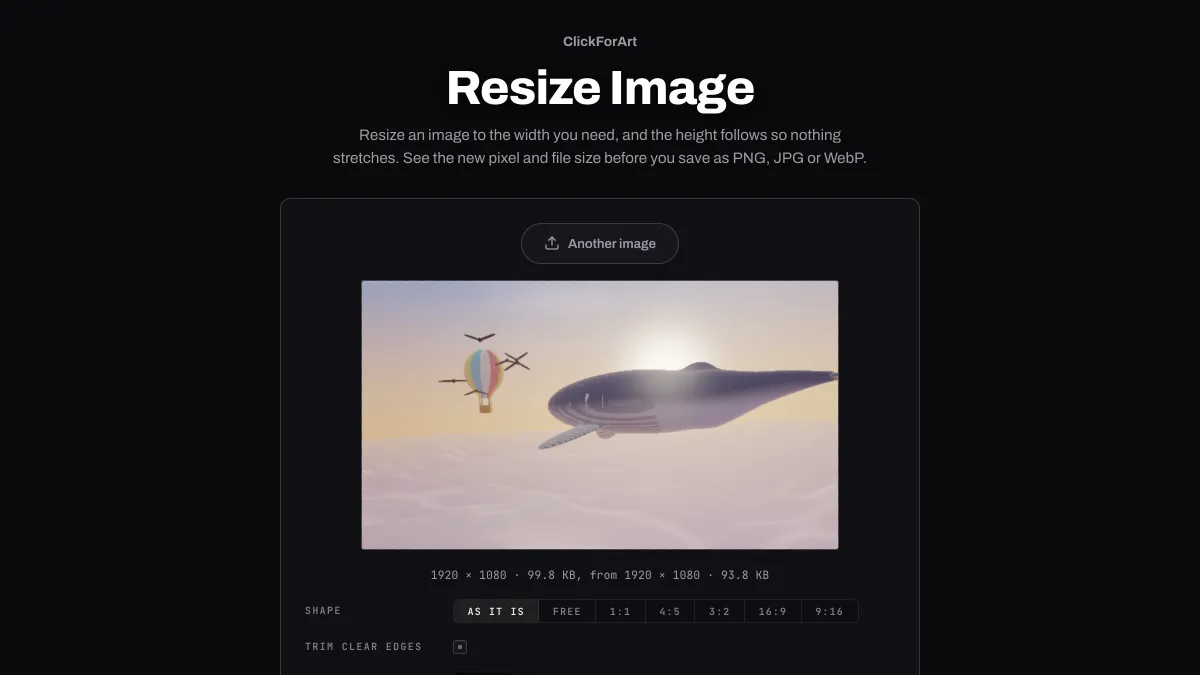
Type a new value in Width and the height shows up beside it in pixels. The preview updates, and so does the line under it, with the new size and file size next to the original's.
Format switches between PNG, JPG, WebP and, where your browser writes it, AVIF; the last three come with a Quality slider. Shape can crop to 1:1, 4:5, 3:2, 16:9 or 9:16 first, and Trim clear edges cuts off a transparent border.
How do you resize to a long side or a height?
There's only a Width box, so work out the width from the size you were given: long side × width ÷ height. A portrait phone photo of 3024 × 4032 needs Width 810 to get 1080 px on the long side, and 1200 for 1600. The height next to Width tells you whether you hit it. On this free page, a portrait photo of that shape tops out at 1536 × 2048.
The height gets rounded to a whole pixel, so a few targets can't be hit exactly. A 1080 × 1920 screenshot comes out 1081 px tall at Width 608 and 1079 at 607. If 1080 is a maximum, go with 607.
Settings for an email newsletter, a blog post and a profile picture
Email newsletter: most email layouts are 600 px wide, so set Width to 1200 and show it at 600 in the template to keep it sharp on high-density screens. Save it as JPG at Quality 80. Skip WebP here, since the classic Outlook for Windows doesn't display it.
Blog post image: double the width of the column it sits in, so a 760 px column gets Width 1520, and save WebP at Quality 75. Readers on a phone or a recent laptop see every pixel, and the file doesn't carry any their screen would throw away.
Profile picture: Shape 1:1 cuts the largest square from the middle, and Width 800 gives any site room to scale it down.
How much smaller does the file get when you resize?
About in step with the pixels, a little above. A 3840 × 2160 landscape photo, which this page takes down to 2048 × 1152, was 449 KB as a JPG at the starting Quality 92, measured with Chrome's own encoder. At Width 1600 it was 280 KB, at 1024 it was 132 KB, and at 600 it was 49 KB.
Halving the width keeps a quarter of the pixels, and here it kept 29 percent of the bytes. WebP at the same Quality went from 382 KB to 117 KB, 31 percent. A 1920 × 1080 screenshot of a text page shrank less when halved: down to 31 percent as JPG and 35 percent as WebP.
What width does an image need?
Its display width times the screen's pixel density. Most phones and plenty of laptops draw two or three device pixels for each CSS pixel. So a picture shown 400 px wide needs 800 to 1200 px to look sharp there, and anything wider just gets downloaded and thrown away.
Why is my resized PNG still large?
PNG stores a photo without loss, so even at half the width it can run to megabytes. Switch Format to JPG or WebP for photos. Keep PNG for screenshots, logos and anything with text, where JPG blurs the edges.
A screenshot can even get bigger. The same text page saved as PNG was 389 KB at 1920 px and 431 KB at 1600. Scaling by an uneven factor turns crisp letter edges into in-between grays, and PNG doesn't pack those as tightly. Halved exactly, to 960, it came to 171 KB.
If you'd like to trade quality for size with a live preview, Image Compressor opens at Quality 70 and shows the file size as you drag.