Crop Image
Crop images to 1:1, 4:5, 3:2, 16:9 or 9:16, or drag out any box, then save as PNG, JPG or WebP. Crop a photo online for free, and nothing is uploaded.
What does it mean to crop an image?
Cropping cuts away the outer part of a picture and keeps the rest. You'd do it to clear clutter from the edges, tighten the framing on a subject, or fit a photo to a fixed aspect ratio, which is the width of a frame over its height.
Each ratio here has a usual job. 1:1 is the square for profile pictures and grids, and 4:5 is a tall portrait post. 3:2 is the frame of 35 mm film and a lot of camera sensors. 16:9 is widescreen video or a thumbnail, and 9:16 fills a phone screen for stories and vertical video.
How to crop an image to an exact ratio
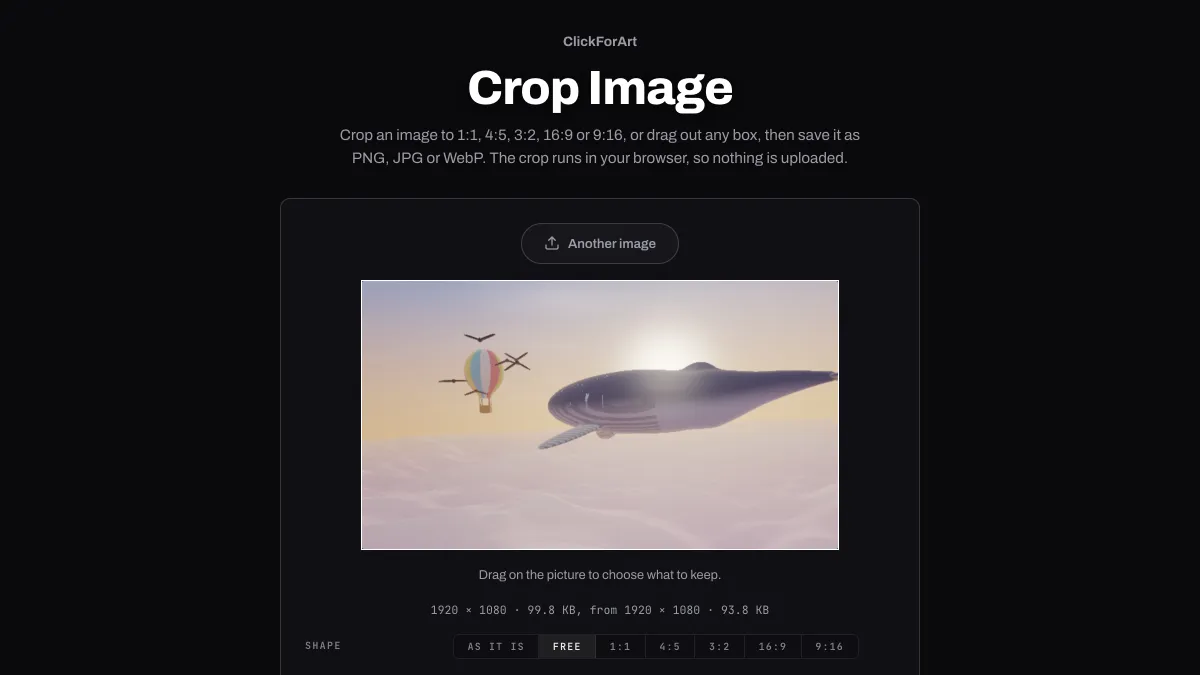
Shape starts on Free: drag across the picture to draw the box you want to keep, and everything outside it dims. Pick 1:1, 4:5, 3:2, 16:9 or 9:16 instead and the tool takes the largest box of that shape from the center. As it is keeps the whole frame. Tick Trim clear edges to cut off a transparent border before the shape gets applied.
Width sets how wide the saved crop is, and the height follows from its shape. Format picks PNG, JPG or WebP, plus AVIF where your browser can write it, and the lossy ones add a Quality slider. Download saves the file; Open in Studio takes the crop into the editor instead. Every Shape here is a rectangle. For a round profile picture with clear corners, Crop Image to Circle does the same job with a circle.
Settings for an Instagram post, a YouTube thumbnail and a 6 × 4 print
Instagram portrait post: Shape 4:5 and Width 1080, which gives you 1080 × 1350. Instagram scales any wider upload down to 1080 px anyway, so a bigger file just takes longer to upload.
YouTube thumbnail: Shape 16:9 at the largest Width this page allows, 2048 × 1152. YouTube asks for 16:9 and at least 640 px across. A thumbnail uploaded from a phone has to stay under 2 MB, and the size line under the preview lets you check that before saving.
A 6 × 4 inch print: Shape 3:2 and Width 1800, which works out to 300 pixels per inch on paper. A camera photo is usually 3:2 already and loses almost nothing. A phone photo is 4:3, though, and gives up 11 percent of itself in strips at the top and bottom.
How much of a phone photo does each shape keep?
Each Shape cuts the largest box of its ratio from the middle, so how much survives depends on how you held the phone. From a 12-megapixel photo taken upright, 3024 × 4032, 4:5 keeps 94 percent of the picture and 9:16 keeps 75. Hold the same phone sideways, 4032 × 3024, and 4:5 keeps 60 percent while 9:16 keeps only 42.
16:9 goes the other way: 75 percent of a sideways shot and 42 of an upright one. 1:1 keeps 75 percent of either. So hold the phone upright for stories and portrait posts, and sideways for video thumbnails. When the subject's off-center, use Free and drag the box over it.
Does cropping lower image quality?
Not by itself. Cropping only drops pixels, and at the crop's own width the ones you keep are copied as they were. PNG saves them exactly; JPG and WebP re-encode them at whatever Quality you set.
This page copies a crop pixel for pixel up to 2048 pixels on its long side, and scales anything bigger down to that. A 1:1 crop from a 12-megapixel phone photo is 3024 pixels square, so it saves at 2048, about two thirds of its size. Drag a box of 2048 or less and nothing gets resampled.
Width stops at the crop's own width because cropping here never enlarges. A small box dragged on a big photo might be only a few hundred pixels across, and stretching it would just blur it. The line under the preview shows the new pixel size and file size next to the original's.
Saving a crop
The format stays the same unless you change it. A JPG photo saves as JPG at Quality 92, and a PNG screenshot stays PNG, which keeps its text sharp. If you need to fit an upload limit, lower Quality right here and watch the size line; the crop and the compression happen in one save.
If the crop needs cutting into tiles for a grid or a carousel, take it on to Split Image.