Image Compressor
Compress an image to a smaller file size: pick JPG or WebP, drag the Quality slider and watch the new size and preview update live before you download.
How does image compression make a file smaller?
Lossy formats like JPEG and WebP keep a picture's broad shapes and colors and store the fine detail more coarsely. JPEG, for example, splits the image into 8 by 8 pixel blocks and turns each one into frequencies with the discrete cosine transform. As quality drops, it rounds off the fine frequencies harder.
Lower quality means a smaller file and more visible loss: blocky patches in smooth areas like sky, and smearing around sharp edges and text. PNG is lossless and has no quality setting, so you can't squeeze it this way.
How to compress an image with this tool
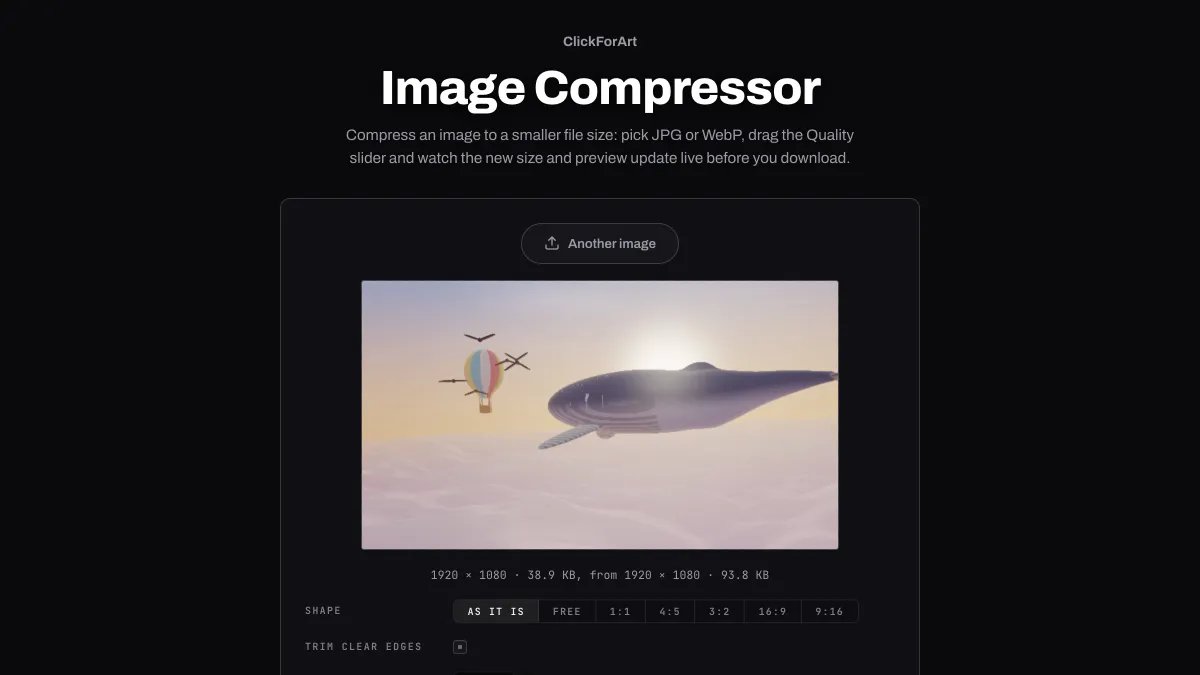
A PNG opens set to WebP, a JPG or WebP keeps its format, and Quality starts at 70. Drag Quality anywhere between 10 and 100. The preview and the line under it update with the new file size next to the original's.
Width is the other way to cut size, since half the width leaves a quarter of the pixels. Format offers JPG and WebP, AVIF where your browser can write it, and PNG. PNG has no Quality; it's there to show what a lossless copy would weigh.
Settings for a website hero, a 1 MB upload limit and a screenshot
Website hero under 200 KB: WebP, Width 1920 and Quality 70. Then lower Quality in steps of 5 for as long as the readout stays above 200 KB. If it's still over at 50, set Width to 1600 instead. That takes away about 30 percent of the pixels and usually costs less detail than pushing Quality lower.
A form that takes 1 MB at most: JPG at Width 2048 and Quality 80 usually gets a phone photo well under it, and the readout confirms that before you download.
A screenshot with text: WebP at Quality 90 or higher, or PNG. Letters smear long before a photo shows any loss, so a setting that's fine for a landscape will blur a screenshot.
Which quality setting should you use for compression?
Start at 70 and step down while you watch the preview. Stop when blocks show up in flat areas or edges start to blur. Photos hide compression well. Screenshots, logos and text show it first.
If the picture has transparency, pick WebP, which keeps it; JPG fills transparent areas with white.
Why did my compressed file get bigger?
A JPG that was saved at low quality before has already lost its fine detail, and 70 may well be higher than the setting it had. Then the file grows and the picture gains nothing. The readout shows both sizes, so when the original is smaller, keep it, or lower Width instead.
A GIF loaded here comes out as only its first frame. GIF Compressor keeps every frame and cuts colors and frames instead.