GIF Compressor
GIF compressor: reduce GIF size with fewer colors, dropped frames or a smaller width, and see the new file size before you save. It all runs in your browser.
How does a GIF compressor make the file smaller?
A GIF stores each frame as a grid of palette numbers, up to 256 colors a frame, packed with LZW, the lossless compression Terry Welch published in 1984. CompuServe introduced the format in 1987. GIF89a added the frame delays, transparency and disposal rules that animations rely on.
LZW does better on a frame with fewer colors, longer runs of one color and fewer pixels, and an animation with fewer frames simply has less to store. Colours, Drop frames and Width each go after one of those.
How to compress a GIF
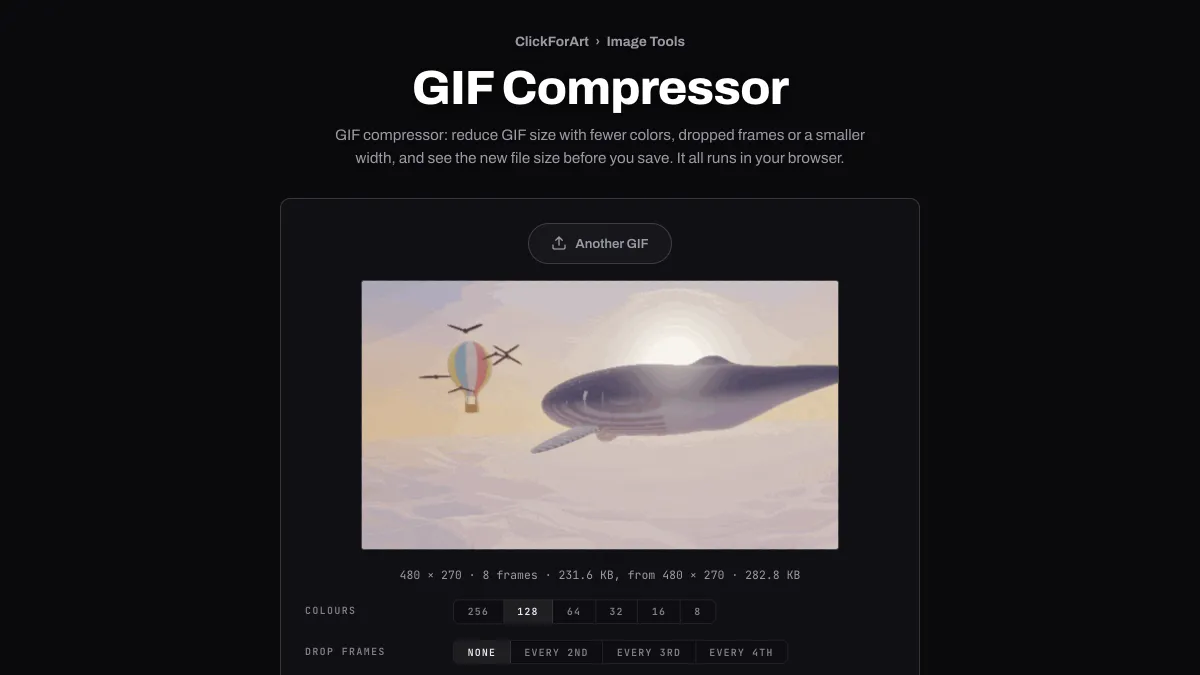
A GIF gets re-encoded as soon as it loads, at 128 colors. The preview plays the result, and the line under it gives the new pixel size, frame count and file size next to the original's pixel and file size.
Colours goes from 256 down to 8. Drop frames takes out every 2nd, 3rd or 4th frame and adds each one's time to the frame before it, so the animation runs just as long. Width scales every frame, and the height follows. Dither lays a 4 × 4 Bayer pattern over the color bands a small palette leaves behind. Download saves the GIF.
Which setting shrinks a GIF the most?
It depends on what moves in it. Take a test screen recording: 800 × 500 px, 60 frames of an app with a moving pointer, a growing progress bar and a button that changes color. Written the plain way, every frame whole, it weighed 1.22 MB, and 37.5 KB as soon as it loaded here at 128 Colours. From there, halving Width got it to 19.9 KB, Every 2nd frame to 29.3 KB and 32 Colours to 31.8 KB.
A test camera pan, 480 × 270 px and 60 frames with light grain, where every pixel changes, came to 2.92 MB at 128 Colours. Halving Width left 690 KB, under a quarter, with almost no loss of detail by a pixel-by-pixel measure. Every 2nd frame left 1.49 MB. 32 Colours left 1.67 MB and lost far more detail than halving Width did.
So when the whole frame moves, lower Width first. And don't expect much from Drop frames in a screen recording: each frame you keep has to carry the changes from the one dropped before it, and half the frames still left 78 percent of the bytes.
Settings for a Slack emoji, an email and a screen recording
Slack emoji: Slack recommends square images under 128 KB and takes GIFs of up to 50 frames. Set Width to 128 and Colours to 64, and Drop frames to Every 2nd if the GIF has more than 50 frames. Flat art fits easily; a test cartoon face bouncing for 50 frames came to 107 KB. A clip from a video usually won't. 50 grainy frames at 128 px weighed 311 KB, and only about 20 of them, one second at 20 frames a second, got under 128 KB, so trim the clip before you make the GIF.
An email: a layout 600 px wide won't show anything wider, so set Width to 600 or less, Colours to 64 and Drop frames to Every 3rd. The loop keeps its length, since each dropped frame's time goes to the one before it.
A screen recording of an app for a README or a help page: Colours 32 and Dither off. Interface colors are flat and hold up in a small palette. And because only the changed part of each frame is stored, a recording where just the pointer and one panel move stays small.
Why does a still background cost almost nothing?
Each frame is only written where it differs from the frame before. Pixels that stay the same are left transparent so the earlier frame shows through, and the frame is cut down to the box around whatever changed. A still background gets stored once, and a small moving part costs only its own pixels.
Every frame gets its own palette, picked by median cut from the pixels it changes, so a frame that changes little needs few colors. Where something goes from visible to clear, the frame before it is set to clear itself away, which is how a transparent GIF keeps its see-through areas.
A frame that changes nothing is stored as a single see-through pixel that just holds its time. An 8-second GIF of 320 frames at 960 × 540, every one of them the same picture, went from 107.5 MB to 353 KB that way, even at 256 Colours.
Why won't a GIF made from a video get smaller?
Usually it's grain. A pixel only gets skipped when it matches the frame before exactly, and the faint noise from a phone or camera sensor changes nearly every pixel in every frame. In a test, a still shot of 480 × 270 px with light grain came to 2.86 MB over 60 frames at 128 Colours; the same shot without grain came to 24.5 KB. Cutting Colours won't bring the skipping back, because the match is checked before the palette.
A GIF that's been optimized already, or a film clip where every pixel moves, doesn't have much left to save at 256 colors. The grainy test pan came out at 3.66 MB at 256 Colours, against 3.49 MB written the plain way. Lower Colours, drop frames or reduce Width, and compare the two sizes under the preview. If the original's still smaller, keep it.
Good light keeps grain down, and a camera on a tripod keeps the background still. Square the clip and trim it before you make the GIF, because Crop Image only reads the first frame of an animated file. For anything longer than a few seconds, an MP4 is far smaller than a GIF wherever video is accepted.
Should you turn on Dither?
Turn it on for gradients and photo-like footage at 32 colors or fewer, where flat bands show up, and leave it off for flat art. The pattern is fixed to the frame instead of moving with the picture, and pixels that didn't change aren't redrawn, so a still background doesn't crawl.
It costs bytes wherever the picture moves, because the pattern breaks up the long runs of one color that LZW packs best. In the tests above, Dither made the camera pan 12 percent larger at 128 Colours and 13 percent at 32. It made the screen recording 32 percent larger, and scattered dots over flat interface colors that didn't have any before.