Add Text to Image
Add text to an image or video: a caption, subtitle plate or yellow highlight in any font, placed where you like. It runs in your browser; nothing is uploaded.
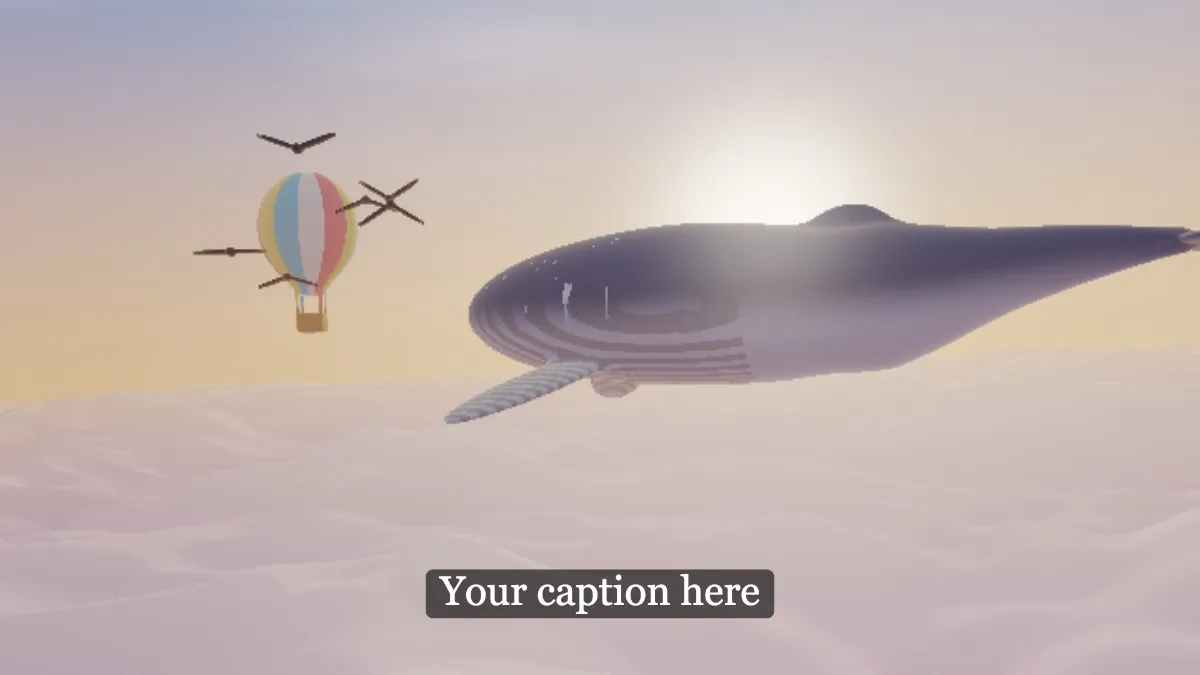
What kind of text can you add to an image?
A caption is a short line of text that goes with a picture, the way newspapers and magazines use them. On video the same idea becomes subtitles: words in a band near the bottom of the frame, often on a dark box so they stay readable over any shot.
The tool opens on the Subtitle preset, which is white Georgia near the bottom on a semi-transparent black plate. The other presets are Caption, Bottom, Big, Typewriter and Highlight, and Highlight is dark text on a solid yellow plate.
How to add text to an image
Load an image or a video and type your words in Text, up to 120 characters. Anything wider than 92% of the frame wraps to the next line.
Position X and Y place the text and Size sets how tall it is. Font and Align choose the face and alignment. Colour is the text color, and Outline adds a stroke that has its own Outline colour and Outline width.
Plate puts a box behind each line, controlled by Plate colour and Plate opacity. Opacity fades the text, and Blend mode mixes it into the picture with Multiply, Screen, Overlay, Add, Subtract, Difference or Exclusion.
How big should subtitles be?
The BBC's subtitle guidelines want a line height of 7 to 8% of the picture's height on 16:9, 4:3 and square video, and 3.9 to 4.5% on vertical 9:16 video. A line here is 1.2 times Size, so the Subtitle preset's 0.06 comes to 7.2%, right in range. For a vertical clip, use a Size of about 0.035.
Those guidelines also cap a line at 68% of the width on landscape video and 90% on vertical, white on black. This tool only wraps at 92% of the width, so on a landscape clip keep each caption short enough to fit the tighter limit.
Settings for a meme caption, a quote card and a quiet credit line
Meme caption: white Colour in Bungee, Size 0.1, Position Y 0.1, Outline colour black and Outline width 4. That thick dark stroke keeps white letters readable on any part of a photo.
Quote card: the Highlight preset at Size 0.06, Align on Right, Position X at 0.06. Align names which side of Position X the text sits on. Right starts every line at that point and runs it to the right, so you get a left-aligned block, and the yellow plate follows each wrapped line like a marker pen.
Quiet credit line: Size 0.03, Position X 0.97, Position Y 0.96, Align on Left, Opacity 0.6, Blend mode Screen. Left ends the text at the anchor so it hugs the right edge, and Screen stops it from darkening the picture.
Saving captioned pictures and clips
A captioned photo saves nicely as a high-quality JPG. For a screenshot or a graphic with small text, PNG keeps the letters crisper, because JPG smears that hard edge between a letter and a flat background.
Text on a video gets burned into the picture, so every player shows it and nobody can turn it off. Those are open captions, as opposed to the closed captions a player loads from a separate file. If there's a name to hide first, run Blur Text over the screenshot and load its PNG here.