Emboss Effect
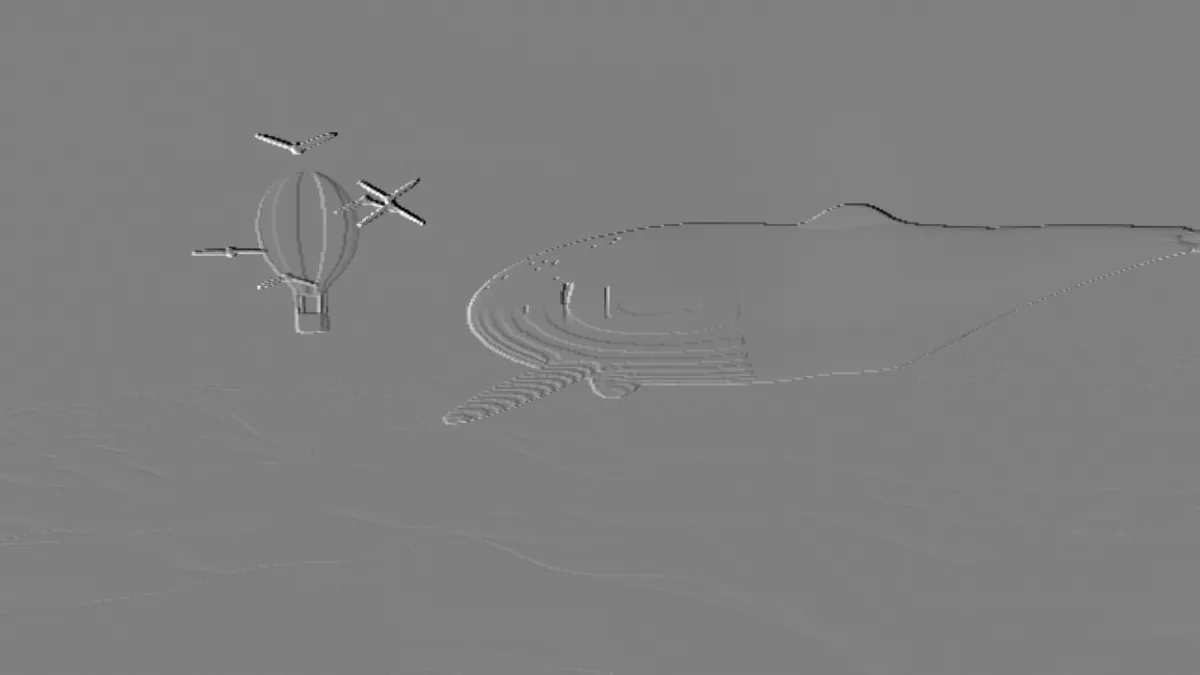
Emboss effect for photos and video: edges rise as a gray relief lit from the angle you choose, from a faint press to deep metal. Free; saves PNG, MP4 or GIF.
What is embossing?
In print, an emboss is a raised image pressed into paper between two matching dies. Without ink it's called a blind emboss, and the reverse, an image pressed in, is a deboss. You only see the shape because light rakes across it, so one side of every ridge catches the light and the other falls into shadow.
An emboss filter paints that lighting onto a flat picture. It treats brightness as height and shades each slope by which way it faces. The result looks stamped from gray metal, with its outlines standing up from a flat ground.
How is an emboss effect calculated?
For each pixel, the filter reads the brightness two pixels away on either side along the light's direction and subtracts one from the other. When the light comes from the side of a wide frame, the two samples sit a little farther apart. That difference is the slope of the brightness in that direction, or in math terms a finite-difference estimate of the directional derivative.
Then it adds mid-gray, so flat areas sit at 50 percent, slopes facing the light come out lighter and slopes facing away come out darker. Classic 3×3 emboss kernels work out the same kind of difference across a diagonal in a single convolution. Flat color has no slope, so it drops out, and you're left with only edges and texture.
How to emboss a photo
The page opens on the plain gray relief. Mix blends it with the photo: halfway, the relief and the color share the picture, and at the far end of the slider the photo shows untouched. Strength, from 0 to 5, sets how deep the relief looks, and the Deep preset puts it at 3.
Angle is where the light comes from, read on the picture. At 0 it lights shapes from the left, at 45 from the upper left and at 90 from straight above. 135, the default, is the upper right, 180 the right and 270 below.
With the light from above, anywhere from 45 to 135, bright shapes stand up and dark ones sink in. That's how the eye reads a relief lit from overhead. Between 225 and 315 the light comes from below and the two swap, so the same photo can come out raised or pressed in.
Settings for a coin, a letterpress mark, a wide bevel and a subtle relief
For a coin or medal, put a portrait on a plain background at Strength 2.5, on the plain relief. Angle 90 raises a light face on a dark ground, and 270 raises a face that's darker than its background. For bronze, tint the gray with two colors from the Color Effects hub. If you want polished, reflective metal, run the original through Chrome Effect instead.
For a letterpress mark, use a dark logo on white at the default Angle 135. The letters' upper-right edges go black and their lower-left edges white, which looks like type pressed into paper. Set Angle to 315 for a raised logo. A crisp black-to-white edge already hits pure white and pure black at Strength 0.5, so more Strength doesn't change much on clean line art.
A wide bevel depends on the edge: the relief is only as wide as the edge it reads. A hard edge gives a lit band 4 pixels wide. Soften that same edge over 12 pixels and you get a 16-pixel band at 83% of full white, which Strength 4 brings back to full white. So soften a logo with a tool from the Blur, Light & Glow Effects hub before you emboss it. For a subtle relief, use Strength 1.5 with Mix a quarter of the way from the photo to the relief, and every edge gets a light side and a dark side while the colors stay.
Why is most of my embossed picture flat gray?
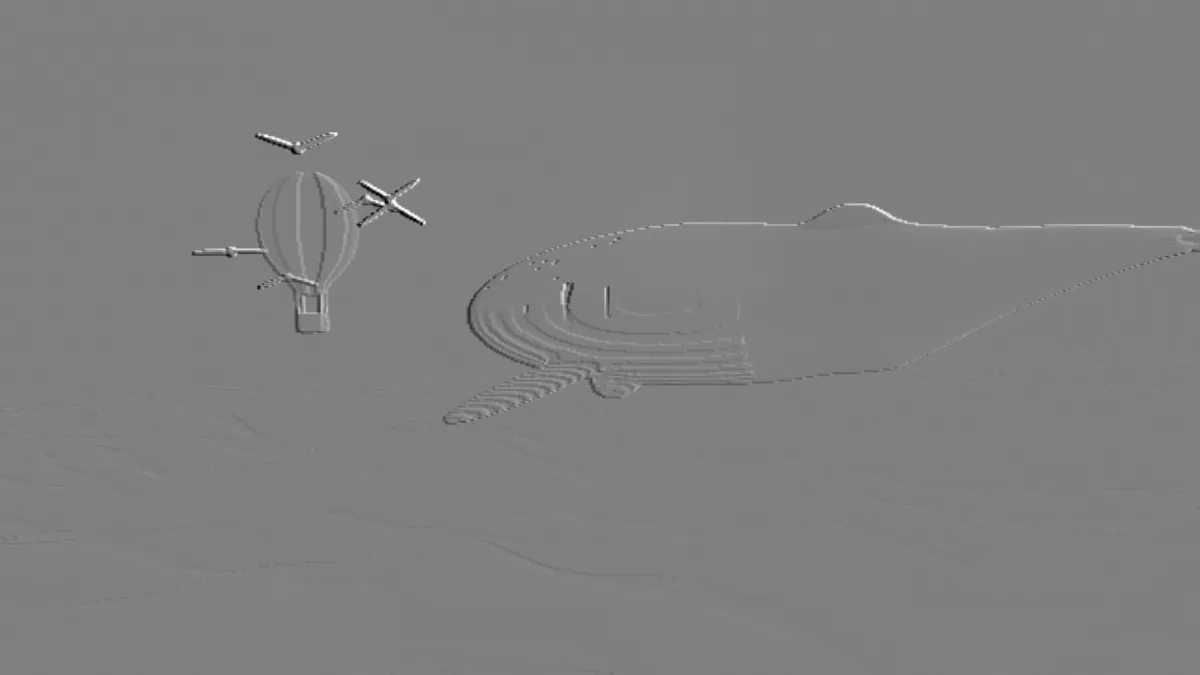
The relief shows change, not tone. Anywhere the brightness is even, from a clear sky to a black shirt, the slope is zero and the pixel sits at mid-gray. Only edges and texture rise or sink.
Take the example frame, a soft, misty shot: at Strength 1, 92% of its pixels stay within two levels of mid-gray. Strength 2.5 brings that down to 53%. Strength 4 only gets it to 49%, and by then the strongest edges are starting to clip to pure black and white. Past about 2.5, more Strength mostly deepens what already stands out.
Can I use the emboss as a height map for 3D printing or laser engraving?
Not directly, because the filter records slope and not height. A white disc on black comes out as a mid-gray plate on a mid-gray ground, the same 50% inside and out, with a lit rim 4 pixels wide on one side and a dark rim on the other. Read as heights, that prints a flat plate with a ridge and a trench.
Lithophanes, 3D reliefs and laser depth engraving treat brightness itself as height. Give them the photo in grayscale, from the black-and-white converter on the Color Effects hub. The emboss is for a flat print that needs to look raised.
Using the relief as a layer in another editor
On the plain relief the flat areas are mid-gray, and the Overlay and Soft light blend modes treat that as neutral. Save a PNG and place it over any picture in one of those modes in your editor. The gray disappears, and the lit and shaded edges stay.
Stick with PNG for that layer. JPG's small errors in the flat gray can show up as faint blocks once it's blended. If the relief is already mixed with the photo's colors, a JPG is fine.