Cartoon Effect
Cartoon effect for photos and video, made with filters, not AI: bold, flat areas of color with thick, dark ink outlines around them. Free, nothing uploaded.
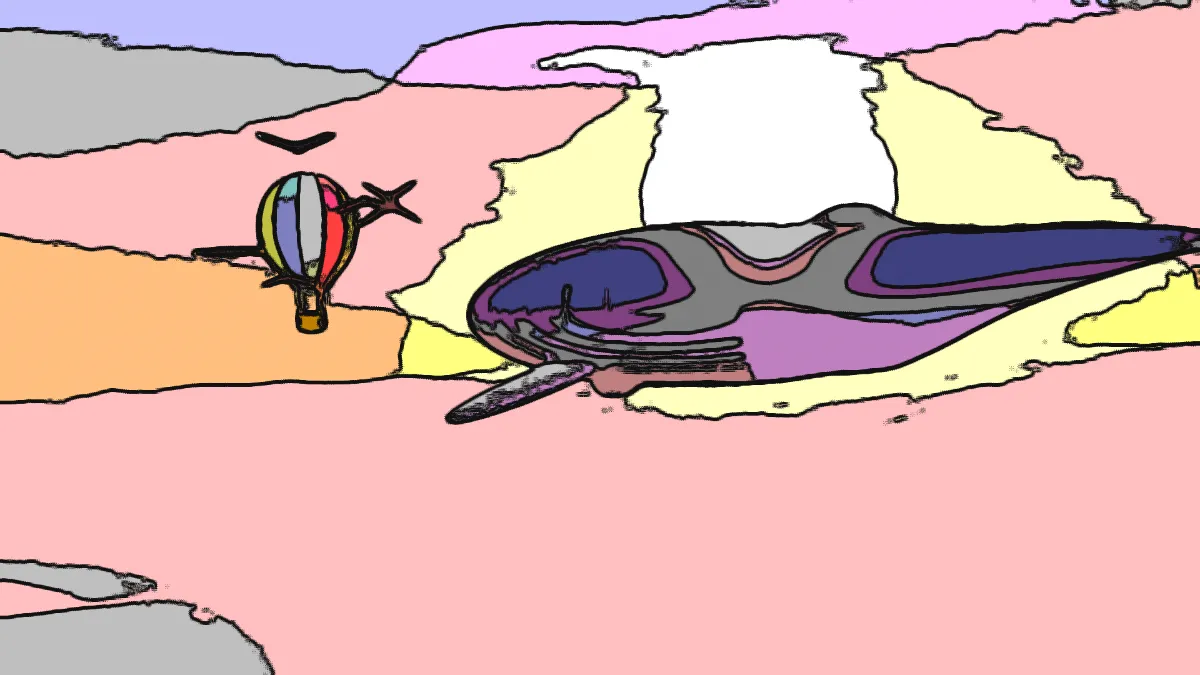
What makes a photo look like a cartoon?
Cartoons simplify. You get broad areas of flat color with a few shades standing in for smooth gradients, and dark outlines around the shapes. A photo, on the other hand, is full of texture and fine gradation.
So to cartoon a photo, a filter has to strip those out and add the lines. This tool does it with four ordinary image filters, and no AI model redraws the picture. Faces keep their real shapes, and the same photo always comes out the same.
How does the cartoon filter work?
Color Correction runs first, with Contrast at 0.2 and Saturation at 0.6, so tones spread 40 percent further from mid-gray and colors come out bold. Next, Oil Paint flattens the picture with an anisotropic Kuwahara filter on its Impasto preset. Around each pixel it weighs eight sectors of an oval brush turned along the local edge and favors the calmest ones, so color spreads within a shape and stops at its border.
Posterize then rounds each color channel to 5 levels, which cuts whatever shading is left into flat bands. Edges goes last. It runs a Sobel operator over the result and draws near-black lines wherever the color changes sharply, 3 pixels thick at 1080p and full Amount. Since it comes after Posterize, it outlines the borders between bands as well as the shapes in the photo.
Holger Winnemöller, Sven Olsen and Bruce Gooch described a similar pipeline in 2006 for real-time video abstraction. Theirs used edge-preserving smoothing, soft color quantization and difference-of-Gaussians edges.
How to turn a photo into a cartoon
Load an image or video. In Color Correction, lower Saturation for a softer palette, or raise Contrast for punchier shadows.
In Oil Paint, Brush size (2 to 20) controls how big the flat areas get, Sharpness how tightly each stroke keeps to its calmest side, and Stretch the shape of the strokes along edges. In Posterize, Levels is the number of steps per channel, from 2 to 20. At 3 steps you get a bold poster look, and 8 steps keep more of the shading.
In Edges, Amount sets how bold the lines are, Thickness their width from 1 to 10 and Edge colour their color. Leave Passthru at 1 to see the full picture under the lines. At 0 you only get the lines, on black, and the Edges presets set it to 0 or 0.7.
Settings for a comic panel, a storybook page, a cartoon video and chalk lines
For a comic panel, set Posterize Levels 3, Edges Thickness 4, Color Correction Saturation 0.8. Three steps a channel leave 27 colors with hard jumps, and the thicker line matches the bold inking of printed comics. For a storybook look, use Levels 8, Brush size 8, Thickness 2, Amount 0.6 and Edge colour #3b2a20. More steps keep soft shading, and thin brown lines feel gentler than black.
For a cartoon video, try Sharpness 8, Levels 6, Thickness 2. A calmer paint stage and smaller steps give the bands less reason to jump between frames where a tone sits right on a step. For chalk lines, set Passthru 0 and Edge colour #ffffff, which leaves only white lines on black.
This chain can't put the lines on white paper. For that, use the Outline only preset in Photo to Pencil Sketch. Oil Painting Effect is just the paint stage, without the bands or the ink.
Why are there outlines across the face, not just around it?
Edges runs after Posterize, so it draws a line everywhere one band meets the next. On a cheek or a sky, those borders split a soft gradient into steps. Raise Levels to make each step smaller, lower Contrast in Color Correction, or turn the Edges Amount down until only the strong outlines are left.
Which format suits a cartoon?
At 5 levels a channel the flat areas use 125 colors at most. That leaves room in a GIF's 256 for the shading along the ink lines, and a cartoon GIF looks clean.
For stills, PNG keeps the dark lines crisp. JPG leaves faint ringing next to each line, and on flat color that artifact is the easiest one to spot.