Photo to Pixel Art
Photo to pixel art converter: square pixels snapped to a PICO-8, Game Boy or C64 palette, or sixteen colors of your own. Video works too; nothing uploads.
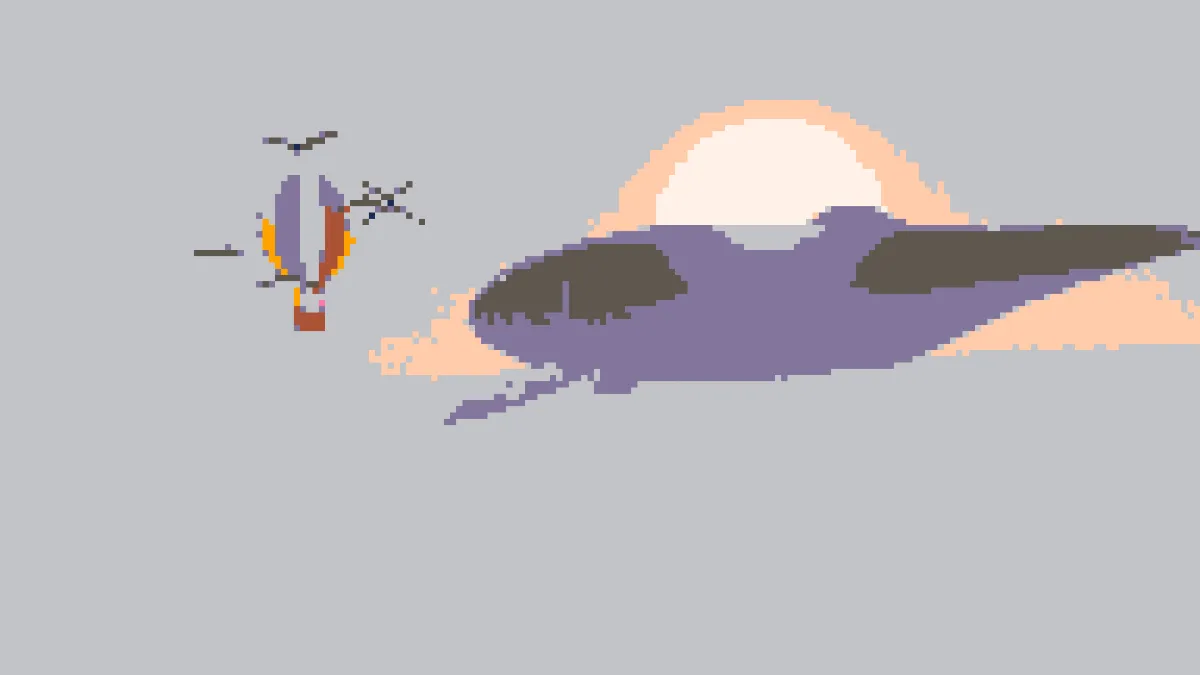
What is pixel art?
Pixel art is a picture made of square pixels you can actually see, drawn from a small, fixed set of colors. It grew out of the 8-bit and 16-bit era, when the hardware decided the limits for you: the Commodore 64 could show sixteen colors, and the original Game Boy just four shades of green.
PICO-8, a fantasy console by Lexaloffle, keeps limits like these on purpose: a 128 by 128 screen and a 16-color palette. The converter opens on that palette, so the moment a picture loads, it's already PICO-8 pixel art.
How to convert a photo to pixel art
Load a picture or a video. Under Pixelate, Size sets the block width in pixels of a 1080p frame. Colour from either takes each block's middle pixel (Centre) or blends the whole block (Average). If you want blocks in the photo's own colors with no palette at all, Pixelate Image does just that first step.
Under Palette, choose a set from the list: PICO-8, Game Boy, C64, two CGA modes, 1-bit or Grey 4. You can change any swatch or add and remove colors, up to sixteen, and Amount blends back toward the original colors.
Judge by sets what counts as the nearest color. The choices are By eye (OKLab), RGB, Luma-weighted RGB, Hue only and Lightness only.
Settings for a PICO-8 cartridge, a Game Boy sprite and a C64 screen
PICO-8 cartridge: keep the PICO-8 palette and set Size to 8. Size is counted against a frame 1080 pixels tall, so 8 gives you about 135 rows of blocks. That's close to the 128 rows on PICO-8's screen, and Centre keeps every block one clean color.
Game Boy sprite: pick Game Boy, set Size to 7 or 8 and switch Judge by to Lightness only. On a 1080p still, those two sizes fall either side of the 144 rows of the Game Boy's 160 by 144 screen. In a 720p video both round to 5-pixel blocks, which is exactly 144 rows. The four greens differ mostly in lightness, so matching on lightness alone puts the photo's light and shadow straight onto them.
C64 screen: choose C64 with Size 5 and Colour from Average. That's about 216 rows, against the Commodore's 200, and averaging stops skin and sky from catching one stray pixel. For your own brand or game palette, type its colors into the swatches and set Judge by to Hue only. Each area then keeps its color family, even where your set has nothing at quite the right brightness.
How does the pixel art converter choose each color?
There are two steps. Pixelate cuts the frame into square blocks of one color each, and Palette then snaps every block to the closest color in the palette.
By default, closeness is measured in OKLab, a color space designed around how people see color differences. Plain RGB distance tends to drag colors toward gray, so a muted orange can end up gray when it should stay orange.
Every block stays one flat color, just like hand-placed sprites. If you're after dithered retro art, where checkerboards fake the in-between shades, that's on the Dithering & Halftone Effects hub.
Why does my pixel art flicker on video?
With Centre, each block shows a single pixel of the frame, and in moving footage that pixel hits a different detail every frame. On top of that, the palette turns any block sitting halfway between two of its colors into a jump from one to the other.
Colour from Average settles both problems, since a block's average only changes as much as its whole area does. A bigger Size helps too, and so does a palette with colors far apart, like 1-bit or CGA.
How do I get one pixel per block and enlarge it without blur?
The saved picture is full size. Each block in it measures Size times the picture's height divided by 1,080, rounded to whole pixels, so for a sprite with one pixel per block the blocks need to divide the picture evenly. Crop the photo to 1,024 by 1,024 first, and Size 8 gives blocks of exactly 8 pixels: 128 by 128 of them, PICO-8's own screen size. We checked all 16,384 blocks of a render like that, and every one was a single flat color.
Next, shrink it to an eighth with nearest-neighbor resampling (Nearest Neighbor in Photoshop, Interpolation None in GIMP), which keeps one pixel per block. Any other resampling blends neighbors into colors that aren't in the palette.
Enlarging works the same way: same setting, whole multiples only, so 2, 3 or 4 times. At sizes in between, like 150 percent, some blocks come out a pixel wider than others, and that shows up as a wobble when the sprite moves.
Saving pixel art: PNG or GIF?
PNG stores every block in its exact palette color, which you'll want if the picture is going into a game or might get recolored later. JPG blends colors along every block edge. A PICO-8 version of this page's example at Size 8 used 8 colors; saved as a quality-92 JPEG with macOS's encoder, it held 1,388.
A GIF frame holds up to 256 colors, so all sixteen come through exactly. Untick Dither in the export settings. Flat blocks don't need it, and it can speckle palette colors that sit close together, like the Game Boy's two light greens. GIF frames also get scaled to fit 960 pixels on the long side. With Pixelate in the chain the blocks keep hard edges, but at a scale that isn't whole some come out a pixel narrower than others, so for even animated sprites, start from a picture smaller than that.