Brighten Image
Brighten an image or video: lift a dark photo with Brightness, or raise just the midtones with Gamma so bright skies keep their detail. Free, nothing uploaded.

What does brightening an image do?
Brightening raises a picture's tones so it reads lighter, and the method you use decides which tones move. Exposure multiplies every value, so highlights gain the most and can clip to pure white. Gamma lifts the midtones and leaves black and white where they are. Contrast spreads tones away from mid-gray, or pulls them in toward it.
The Brightness slider here works like exposure. It multiplies every channel value: by 4 at +1, by about 1.15 at +0.1 and by a quarter at -1. Image files store those values gamma-encoded, so the light you actually see changes more than the multiplier suggests. At +0.1 a mid-gray gains about 35 percent more light, close to half a stop of camera exposure.
How do you whiten a dull, gray photo?
A photo that looks gray, like a scanned page or a snapshot in flat light, usually needs its brightest parts pushed up to white. Raise Brightness until the paper or the background turns white, and stop there, because past that point detail in the bright areas clips away. If the midtones are still murky, raise Gamma instead.
A yellow or blue cast is a white balance problem, and this page has no white balance control. Pulling Saturation down a little makes a cast less obvious.
How to brighten a photo
Load an image or video. The page opens at Brightness 0.1, Contrast 0.1 and Saturation 0.1, which multiplies the pixel values by about 1.15 and adds a bit of snap and color.
Gamma runs from 0.2 to 3. Above 1 it lifts the midtones without touching black or white, so a dark photo gets brighter without the sky blowing out. Hue turns every color around the color wheel. Among the presets, Punchy adds contrast and saturation, Washed gives a brighter, flatter look and Lifted puts Gamma at 1.6, while Neutral resets everything.
Black and White Converter has these same controls with Saturation at its lowest, and Change Image Color opens them on a Hue turn.
Settings for a backlit portrait, a dim indoor photo, a scanned page and a product shot
For a backlit portrait with a dark face and a bright sky, set Gamma 1.5 and leave everything else at 0. Gamma lifts the face's midtones while white stays white, so the sky doesn't clip any further. For a dim indoor phone photo, try Brightness 0.25, Gamma 1.2, Saturation -0.1. That multiplies the values by about 1.4 and lifts the midtones, and the lower saturation makes color noise in the shadows less visible.
For a scanned page, use Brightness 0.3, Contrast 0.2, Saturation -1. Multiplying by about 1.5 turns the paper white, Contrast spreads tones 40 percent further so the ink gets darker, and going gray removes the yellow of the paper. For a product on a white backdrop, Brightness 0.15 and Contrast 0.05 are just enough to lift a grayish backdrop to white without flattening the product.
Why did brightening turn my clouds or sky flat white?
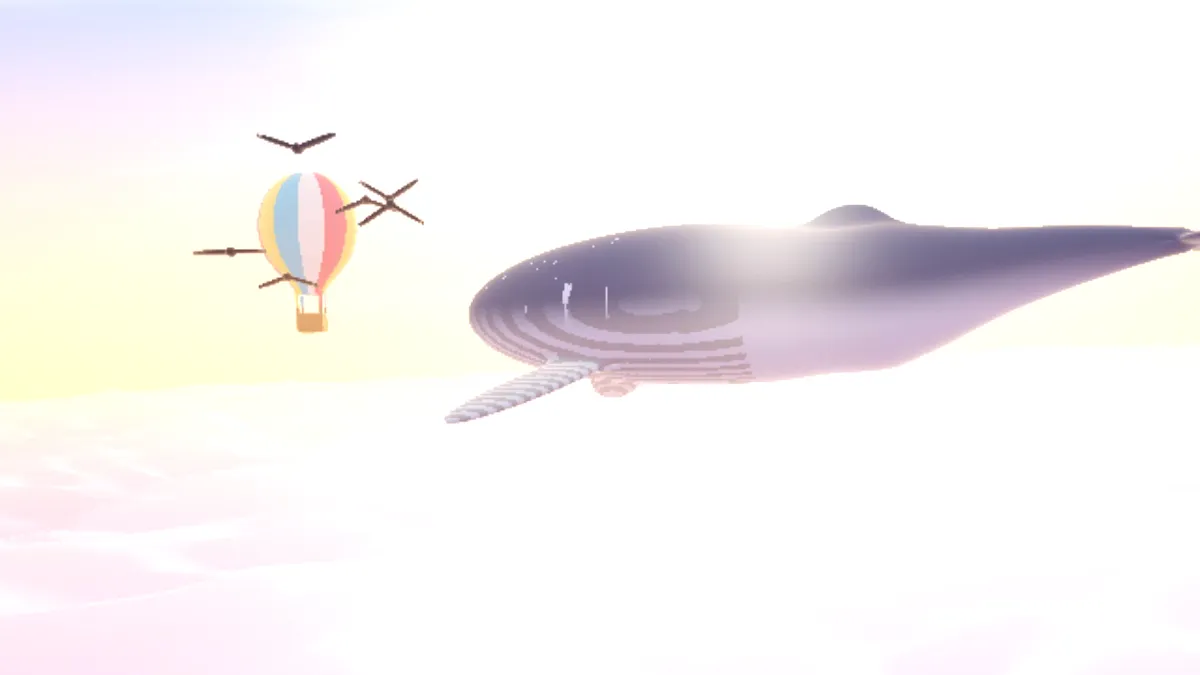
Brightness multiplies, so the brightest parts hit the ceiling first. At 0.2, any channel value of 194 or more ends up at 255 and loses its texture. The whale and balloon picture used for this page's example has clouds around 190 to 200, and Brightness 0.2 clipped at least one channel in 75 percent of its pixels and turned nearly 10 percent pure white. At 0.25, half the picture went pure white.
When the bright parts are already close to white, raise Gamma instead. On that same picture, Gamma 2 lifted the average brightness as much as Brightness 0.12 did and clipped no pixels at all, while Brightness 0.12 clipped a channel in 11 percent of them. Save Brightness for pictures whose brightest part sits well below white.
In what order are the adjustments applied?
Every pixel goes through the same steps. It's multiplied by the Brightness gain, stretched around mid-gray by Contrast, raised to the power 1/Gamma, turned by Hue and pushed away from or toward its own gray by Saturation. Last, it gets clipped to the range a screen can show.
Contrast is gentle near zero and steep near the top. At +0.1 it spreads tones 10 percent further from mid-gray, and at +0.5 three and a half times as far. Below zero it pulls tones toward gray in a straight line, and at -1 the picture is flat gray.
Saving a brightened photo
When you brighten a JPG, its shadows come up, and so do the blocks and noise that compression was hiding in them. Start from the camera original if you can, not a copy that's already been saved and shared.
A brightened photo saves fine as JPG or WebP. Keep PNG for a scan you're going to print or edit again, so it doesn't get compressed twice.