Teal and Orange
Teal and orange is the blockbuster grade that sets warm skin against cool blue-green shadows. Why it centers on skin tones, and how to keep it subtle.
What is the teal and orange look?
Teal and orange is a color grade that pushes skin and warm highlights toward orange and shadows and backgrounds toward a blue-green teal. It's the house style of a lot of action films and their trailers and posters.
It arrived with digital grading in the 2000s. Once colorists could isolate skin from the rest of the frame on a computer, the temptation to set it against its opposite became hard to resist, and blockbusters pushed it so often that the phrase itself became shorthand for an overused look.
Why teal and orange?
Human skin of every complexion falls in a narrow band of hue between red and yellow. Darker and lighter skin differ mostly in how bright and how saturated they are, much less in hue. Video vectorscopes even mark a skin tone line, a diagonal toward the upper left between the red and yellow targets, where faces should land.
If skin is always some kind of orange, the color that makes it stand out most is the one opposite it on the wheel, a blue-green. Push the background that way and every face pops forward, whatever the actor's complexion. Warm practical lights against a blue night sky, or a sunset against the sea, already give you a natural version of the same contrast.
Why does a teal and orange grade sometimes look fake?
It goes wrong when the push is too strong. Skin turns a tangerine color, whites pick up an orange cast, and anything that should be neutral, like a gray suit or a concrete wall, turns teal. The image starts to look like two colors and nothing else. Nature rarely does that, which is why heavy versions read as artificial.
A good grade keeps most of the original color and only nudges the extremes. Shadows lean cool, highlights lean warm, and the midtones where faces live stay close to how they were shot.
How to make the teal and orange look
Gradient Map gives you the most control. Build a gradient with four stops: a very dark teal like #0b1f26 for the blacks, a mid teal #1f5c66, a warm orange #d98a52 for the midtones and a cream #fbe6cc for the highlights. Then bring Amount down to around 0.35, so the original colors stay underneath and only a tint of the gradient comes through. Raise it toward 0.5 for a more obvious poster look.
Duotone Generator is quicker. Set Shadow to the teal #0f4c5c, which is also the dark color of its Pink and teal preset, and Highlight to a soft orange like #f2a65a, then lower Intensity to around 0.3. Full Intensity throws away the original colors and gives a two-color graphic, which can be its own fun look for a poster but no longer reads as a graded film frame.
What footage suits it?
The grade does the most for pictures that already have warm faces or lights in a cooler setting: portraits at dusk, city streets at night with neon, desert scenes with blue sky. A shot that's mostly green foliage or one that's evenly lit at midday fights it, because there's no clear warm subject to separate from a cool background.
Try it
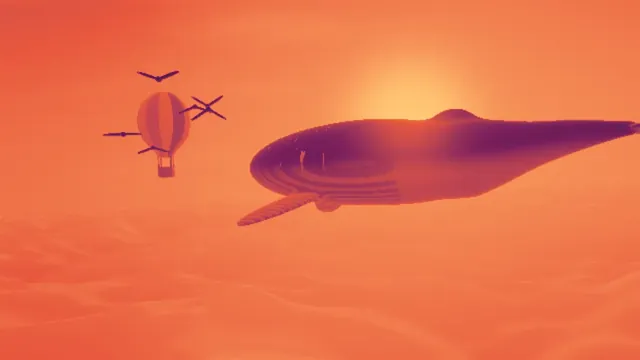
Gradient Map
Apply a gradient map to an image or video: its tones run through up to 16 colors you choose, blended in OKLab so the steps between them stay clean. Free.
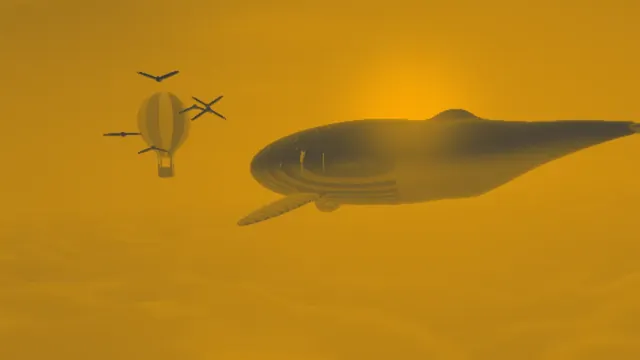
Duotone Generator
Make a duotone from any photo or video: shadows in one color, highlights in another, with presets like Cyanotype and Acid. Free, and nothing gets uploaded.